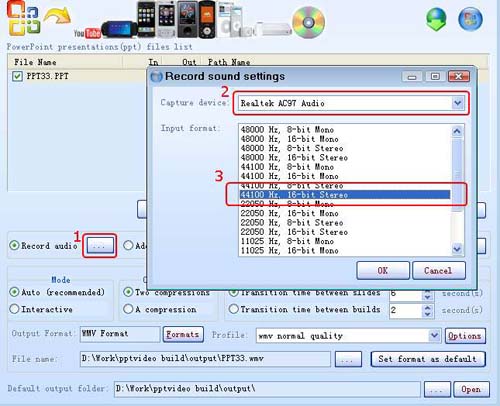
Set audio mode, set output mode, select output format and profiles
Hit "Convert" button.
video guide:
Q: Why are there two audio modes? What is the difference?
A:
The two audio formats provide users with different options:
Record audio: Gives you the option of recording the existing audio track for your PowerPoint project prior to converting it..
Add audio file: Gives you the option of attaching a different audio track. If you select this option, the added audio track overwrites and replaces the existing audio in your PowerPoint project
Q: Can you give me the options for the command line version?
A: E.M. PowerPoint Video Converter command line options (only support for command line version)
/h or /help --- Help information
/f --- Input file
/o --- Output file
/is --- In slide > 0
/os --- Out slide < total slides
/au --- Attached audio file
/sd --- Transition time between slides, default value is 6s
/bd --- Transition time between builds, default value is 2s